



When a new employee starts on Monday, HR has all the paperwork ready and the laptop is waiting on the desk — but the time tracking is still pending, because someone will get around to setting it up eventually.
That “eventually” ends up costing more time than the setup itself, which is why we made it as straightforward as possible in Fritto.
In Fritto, you can add new employees in just a few steps: with the right weekly hours, the correct employee group — and without having to make corrections the next day.
Adding a New Employee
Open the User Management → Users section in Fritto and click “New User”. In the same form, you enter everything the new account needs: the email address for login, first and last name, and optionally a phone number.
Right here, in the “Weekly Hours Capacity” field, you also set the contractual weekly hours. Enter the appropriate value — for example 40 for full-time or 20 for part-time — and Fritto will automatically calculate the correct daily values.
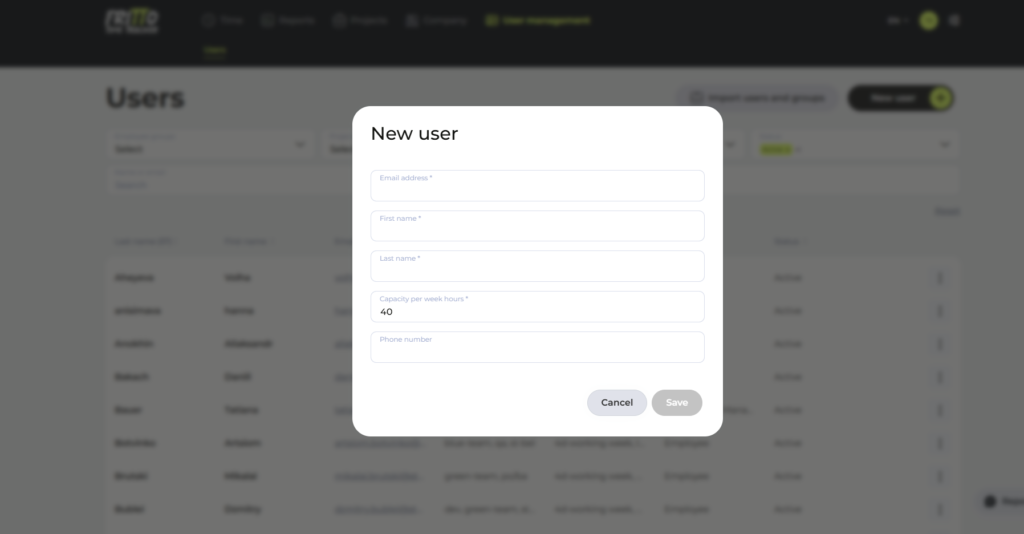
Weekly hours are the foundation for workload calculations, overtime tracking, and team-wide reports. Anyone who skips this field will end up working with incorrect figures later — so it’s worth filling in right when creating the account.
Once you save, the new user automatically receives an invitation email with their access code and can log in straight away.
Creating an Employee Group
Employee groups help you map out your team in Fritto in a structured way and filter reports by specific areas. You can name groups after departments such as Development, Design, or Accounting — or bring together cross-departmental project teams as their own group.
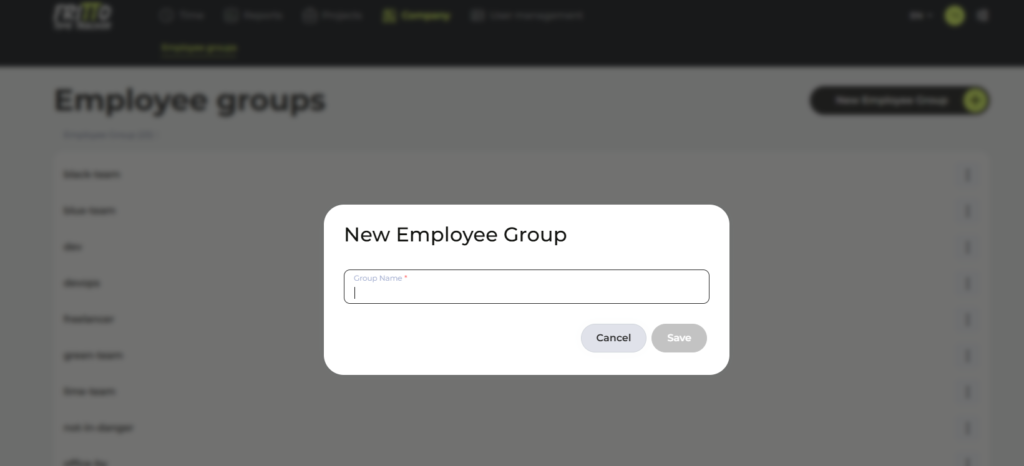
You create a new employee group in the Company → Employee Groups section. Click “New Employee Group” there.

Then give the group a meaningful name and click Save. The group is available immediately.
Assigning a Newly Created Employee to a Group
Once a group exists, you can assign newly created employees to it straight away. Go to the User Management → Users section, select the newly created employee, and click the three dots. Via “Edit”, you can assign the employee to the desired group.

From this point on, the employee appears in all group-based reports. Team leads can see at a glance who has logged how many hours on which project — without having to click through individual user profiles.
What Happens Next?
Once the employee is set up, they can log in and start tracking time straight away — via the web interface, through the Jira plugin, or, if your team works with Claude, even with the AI automatically logging time in the background, so no one has to manually press “Start”.
Weekly hours and group assignments can be adjusted at any time — whenever a role changes, the team is restructured, or someone moves to a different department.
Conclusion
Adding a new employee in Fritto is straightforward — email, name, and weekly hours in one form, group assigned in two clicks, and your new colleague is ready to go on their very first day. Onboarding in time tracking shouldn’t take longer than printing an employee badge.