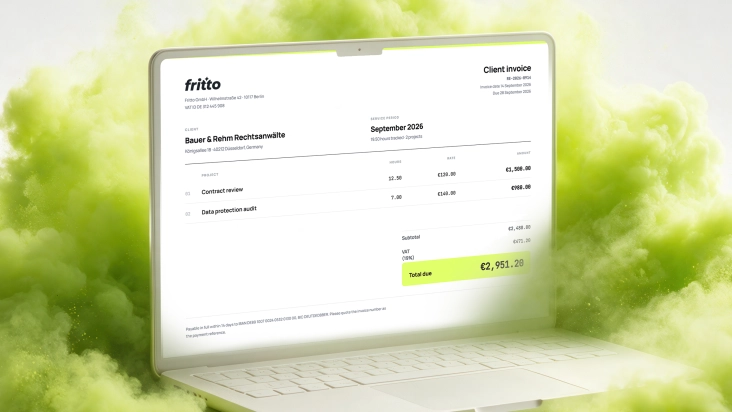
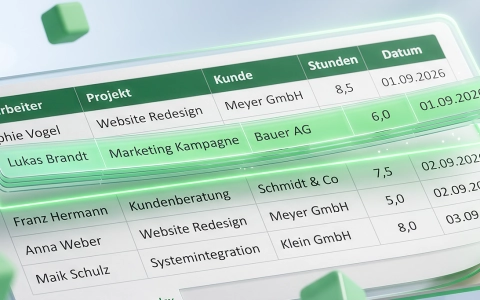
Five people on the team, three clients, and at month-end each client needs a report — who spent how much time on what. You probably know the drill from your own time tracking: one Excel file per person, maybe a shared sheet, and someone pulls it all together at the end. It works — until a formula breaks, someone forgets a day, or two people edit the same copy at once.
One thing up front: Fritto isn’t meant to replace Excel. There are two ways it can help here — either it makes working with Excel faster, or you switch over completely. Which path fits depends on your team. So we’re walking through the same scenario three times: Excel only, Fritto only, and the combination of both.
Short version: Running on Excel alone mostly costs time and patience at month-end. Fritto alone is the fastest option, but it takes away the free-form Excel formatting. The combination of both keeps your existing Excel templates — it just removes the tedious data entry.
The scenario
A team of 5 works for 3 clients — call them Client A, B, and C. Each person works across several clients over the course of a month. At month-end, every client needs their own report: how many hours, for which task, as the basis for the invoice.
Scenario 1: Excel only
Each person logs their hours in their own Excel file, or everyone fills in a shared sheet with five tabs. At month-end, one person — usually from accounting or team leadership — pulls all five files together and builds the three client reports from them, by copy-paste or VLOOKUP.
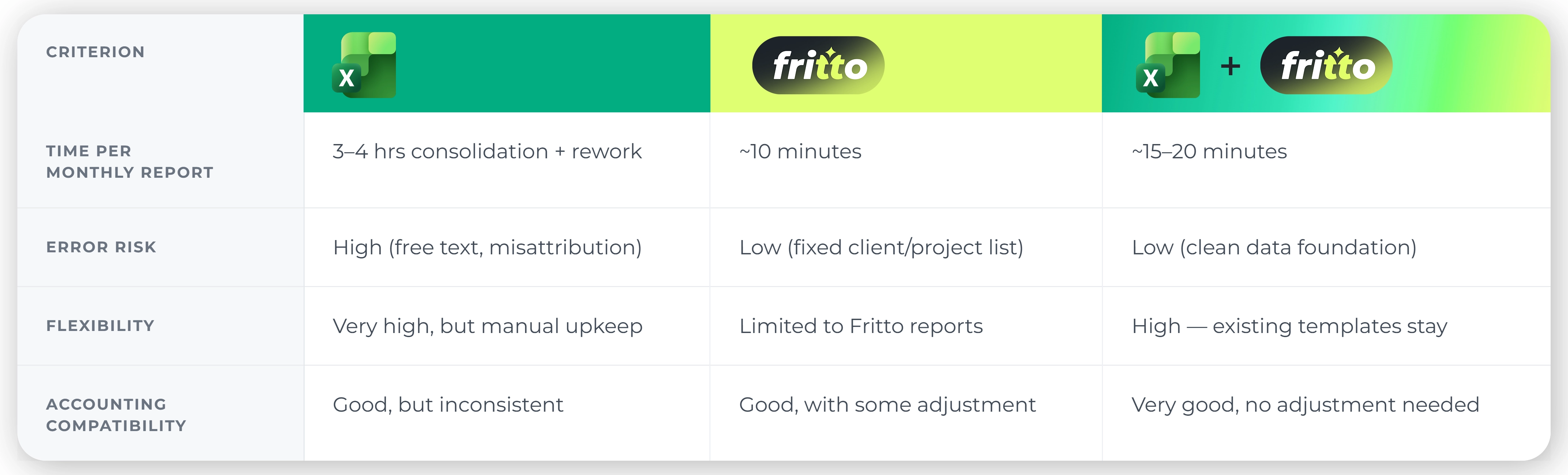
Time spent: Daily entry costs almost no time, about 2 minutes per person per day. Consolidation at month-end, though, typically takes 3 to 4 hours for 5 files and 3 clients — more if a formula breaks or one tab is structured differently from the others.
Error risk: High. Free-text fields get labeled inconsistently, hours land on the wrong client, an entry is missing entirely. Clarifying by email or follow-up often adds another 1 to 2 hours of rework.
Flexibility: Very high. Any formula, any view, any custom breakdown is possible — as long as someone is willing to build and maintain it. If the structure changes (a new client, a renamed project), that has to be updated by hand in all five files.
Accounting compatibility: Generally good, since Excel is already the format accounting works in. In practice it’s inconsistent, though, because every file is built a little differently and has to be standardized before it can be passed on.
Scenario 2: Fritto only
Each person logs their time directly in Fritto against a fixed list of clients and projects — through the web interface, directly in a Jira ticket, or via a connected AI assistant. At month-end, the report for each client is ready in a few clicks.
Time spent: Daily logging stays about as fast as in Excel, often faster, since client and project are picked from a list instead of typed in. The report itself takes about 10 minutes instead of hours.
Error risk: Low. Because client and project come from a fixed list, typos or misattributions are barely possible. What remains is the discipline of actually logging everything in Fritto — not on the side in a note or on paper.
Flexibility: More limited than Excel. Fritto delivers clean, team-wide reports — but a spontaneous custom breakdown, the kind you’d build in Excel in a couple of clicks, needs an export instead. If your team relies heavily on individually built Excel views, you’ll notice this.
Accounting compatibility: Good, but it takes some adjustment. If invoicing has so far been closely tied to existing Excel templates, that part of the process needs to be rebuilt.
Scenario 3: Fritto + Excel combined
Time tracking runs directly through Fritto, as in Scenario 2. For the report, the team uses the live connection via Office Scripts: current time data flows into the existing Excel invoicing template at the push of a button — no manual pulling-together from five separate files.
Time spent: The lowest of all three scenarios. Data updates at the push of a button; adjusting the familiar Excel template still takes about 15 to 20 minutes instead of several hours.
Error risk: The lowest. Data entry runs in a structured way through Fritto; Excel only handles formatting and invoicing logic — not the error-prone manual consolidation anymore.
Flexibility: High. Your existing Excel template for invoices or reports stays exactly as it is, including every formula your accounting team already knows. What changes is only how the data gets in — not what you do with it afterward.
Accounting compatibility: The highest. Accounting keeps working in the Excel template they know, but gets current, clean data instead of five files to piece together.
At a glance
Bottom line: the decision is yours
None of the three scenarios is fundamentally wrong. Running on Excel alone works fine for small teams for a while — until consolidation at month-end starts eating noticeable time. If you’re willing to let go of familiar Excel views, Fritto on its own is the fastest way to go. And if you want to keep your existing Excel templates for invoices and reports, the combination gives you both: familiar templates and a clean, current data foundation behind them.
So Fritto doesn’t necessarily replace Excel — it takes the tedious data entry and consolidation off your plate, whether you then stay fully in Fritto or keep working the data further in Excel.