The export from Fritto to Excel is no longer a problem — the live connection via Office Scripts pulls the time data into the spreadsheet at the push of a button. The question that remains: what do you do with those rows once the invoice is due at the end of the month? In practice, the export is usually followed by manual work all over again — adding up hours per project, looking up the hourly rate, calculating VAT.
This article walks through exactly that last step with a concrete example: from the raw Fritto rows to a finished, correctly calculated client invoice. The template required for this is available for free download at the end.
This guide assumes the live connection from Fritto + Excel: Export Time Data at the Push of a Button with Office Scripts. That article covers downloading the export template and connecting it to Fritto — here, it’s just about the invoice that comes out of it afterward.
An example: one month, one client, two projects
Let’s take a law firm as our client, with two ongoing projects in September: a contract review and a data protection audit. Over the course of the month, an employee logs their hours in Fritto against both projects, with a short description of each task. Before billing, these hours are approved in Fritto — only approved entries should make it into an invoice:
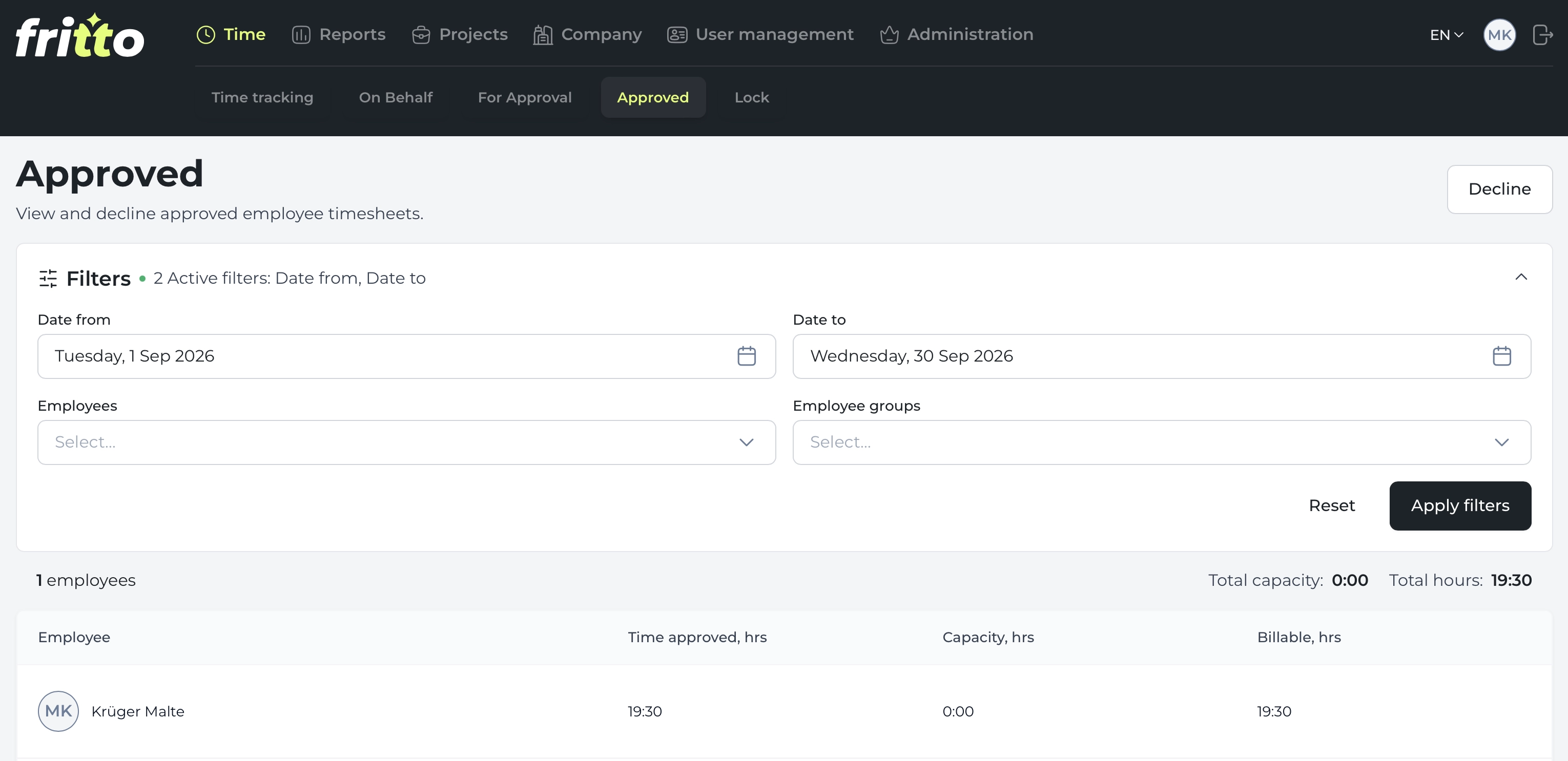
Filtered to this client and time period, the export from Fritto looks like this:
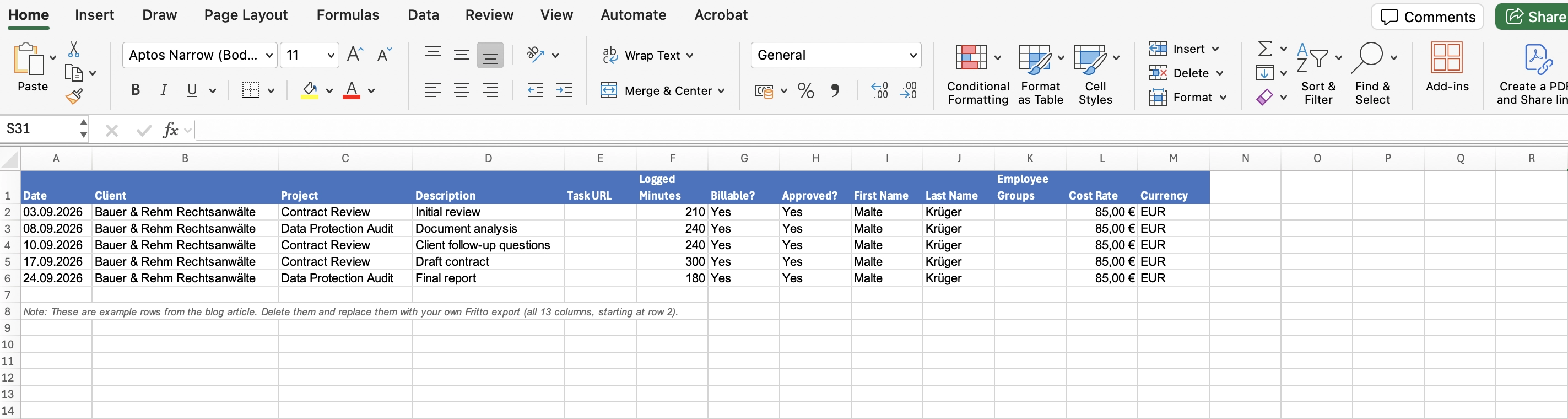
Five rows, one employee, two projects — that’s what the filtered Fritto export looks like for a single client and month. This raw data goes straight into the “Fritto export” sheet of the template, unchanged.
The raw data becomes the invoice
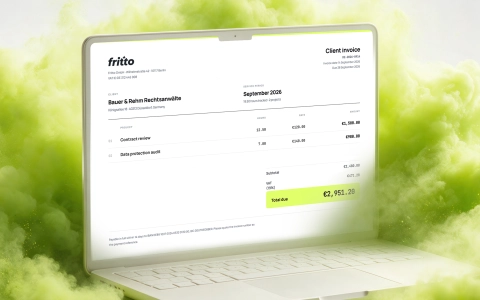
In the second sheet, “Invoice,” you only enter two things per project: the project name — exactly as it’s named in Fritto — and the agreed hourly rate. The template automatically converts the logged minutes into hours, adds them up per project, and calculates the subtotal, VAT, and total. For our example, the result looks like this:
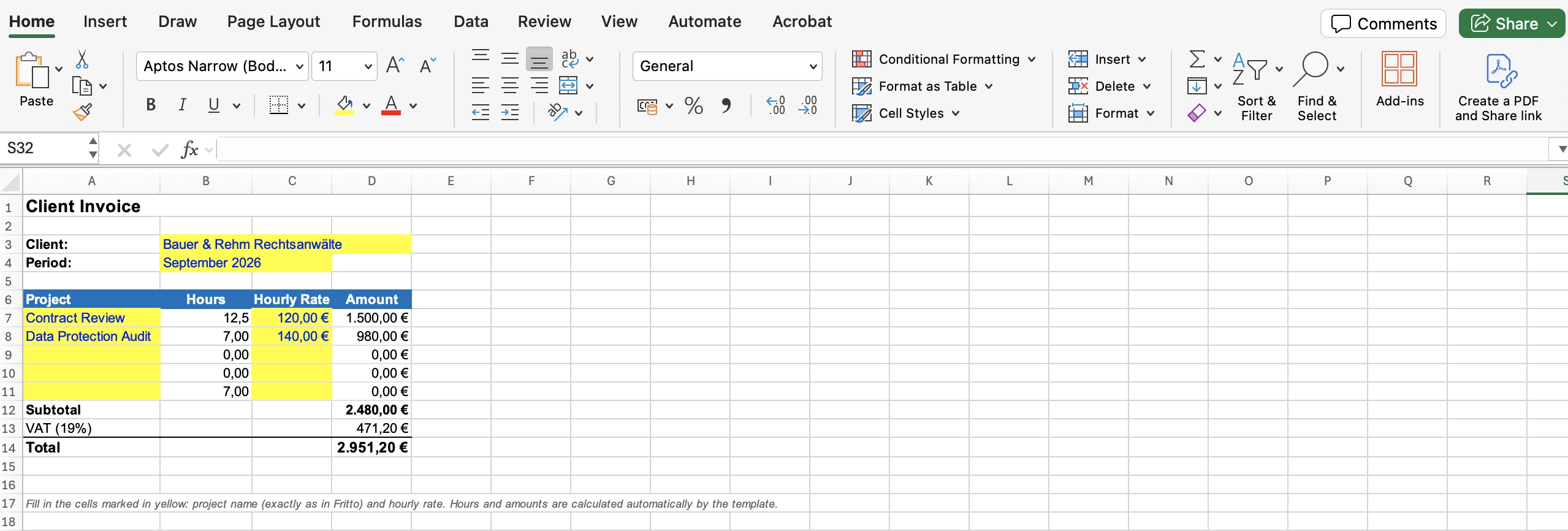
Two inputs — project name and hourly rate — produce a finished, correctly calculated invoice. You never had to add up the hours for the contract review yourself, and never had to calculate the VAT by hand.
How to do this with your own clients
1. Approve hours in Fritto and filter by time period and client. Only approved entries should go into a client invoice.
2. Pull the export into Excel. As described in Fritto + Excel: Export Time Data at the Push of a Button with Office Scripts — open the export template, use the live connection, and the data lands in the “Data” sheet at the push of a button.
3. Paste it into the “Fritto export” sheet. The rows go in unchanged below the existing columns — as in the example above.
4. Enter the project and hourly rate in the “Invoice” sheet. The project name has to be written exactly as it appears in Fritto. The hourly rate is what you charge the client — not the cost rate from the export.
5. Check the result and send it as a PDF. The subtotal, VAT, and total are already there — one glance is enough.
Takeaway: The export was only half the way
Getting the time data from Fritto into Excel is a solved problem. The part that actually costs time at the end of the month is what happens after that — and that’s exactly what the invoice template takes care of. As in the example above: paste the export, enter the project and rate, done.
Download the FriTTo Customer Billing Template and open Excel in the web or desktop version (Microsoft 365 required for Office Scripts).
Would you like to receive more helpful resources? Feel free to email us at